Installing P3/COBOL IDE in Eclipse
Prerequisites
You need a Java 25 or later installation on your system or use a matching built-in JRE from Eclipse. For example:
P3/COBOL 25.0.x requires Java 25 (LTS) or later. Configure the default Java version in the Eclipse Preferences:
Java -> Installed JREs so that it is at least Java 25.
Downloading Eclipse
You may skip to the Installing the P3/COBOL IDE Plugin step if you already have installed an Eclipse Java development IDE.
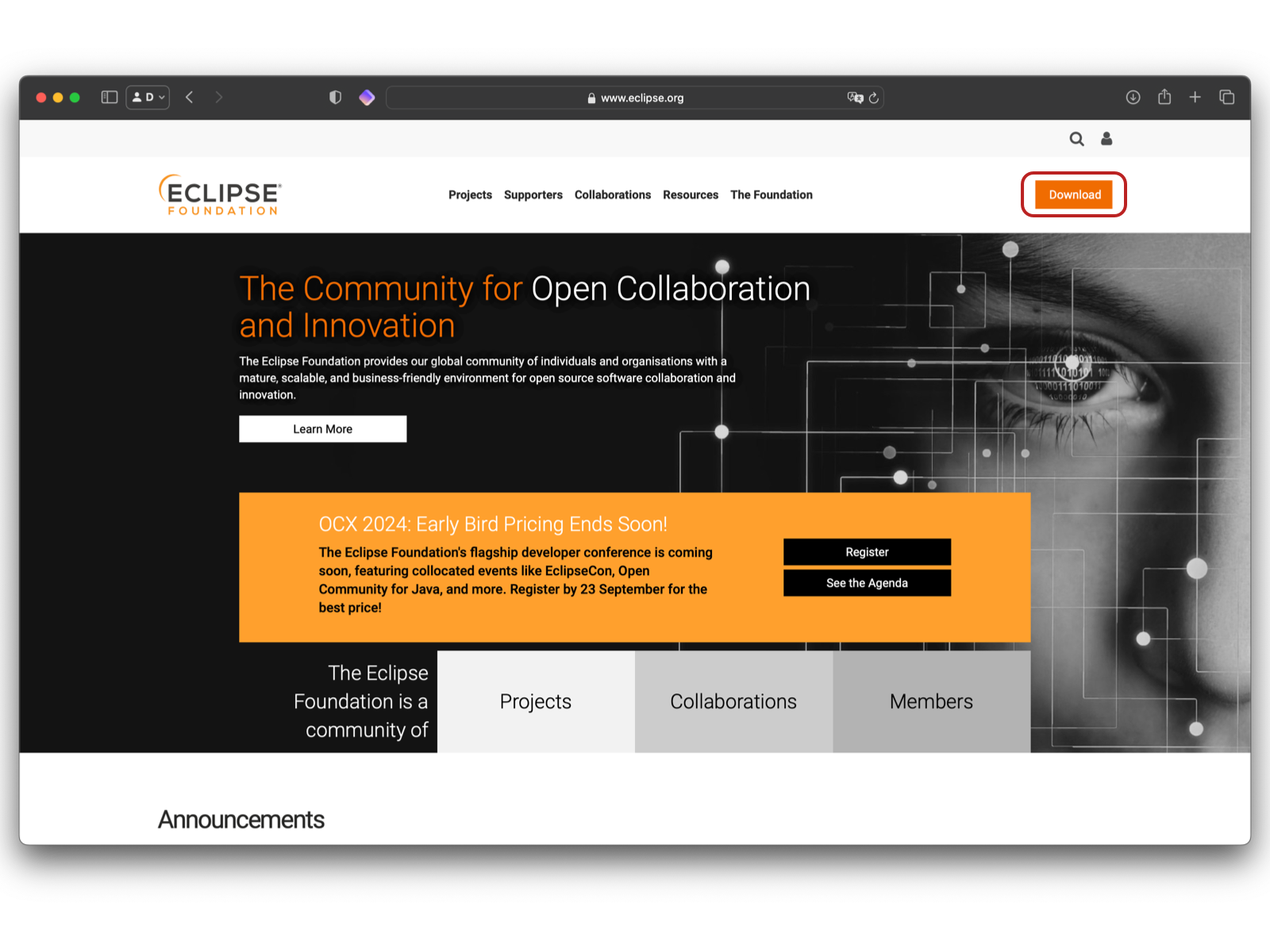
First navigate to the Click Eclipse site to read more. and click on the Download button.
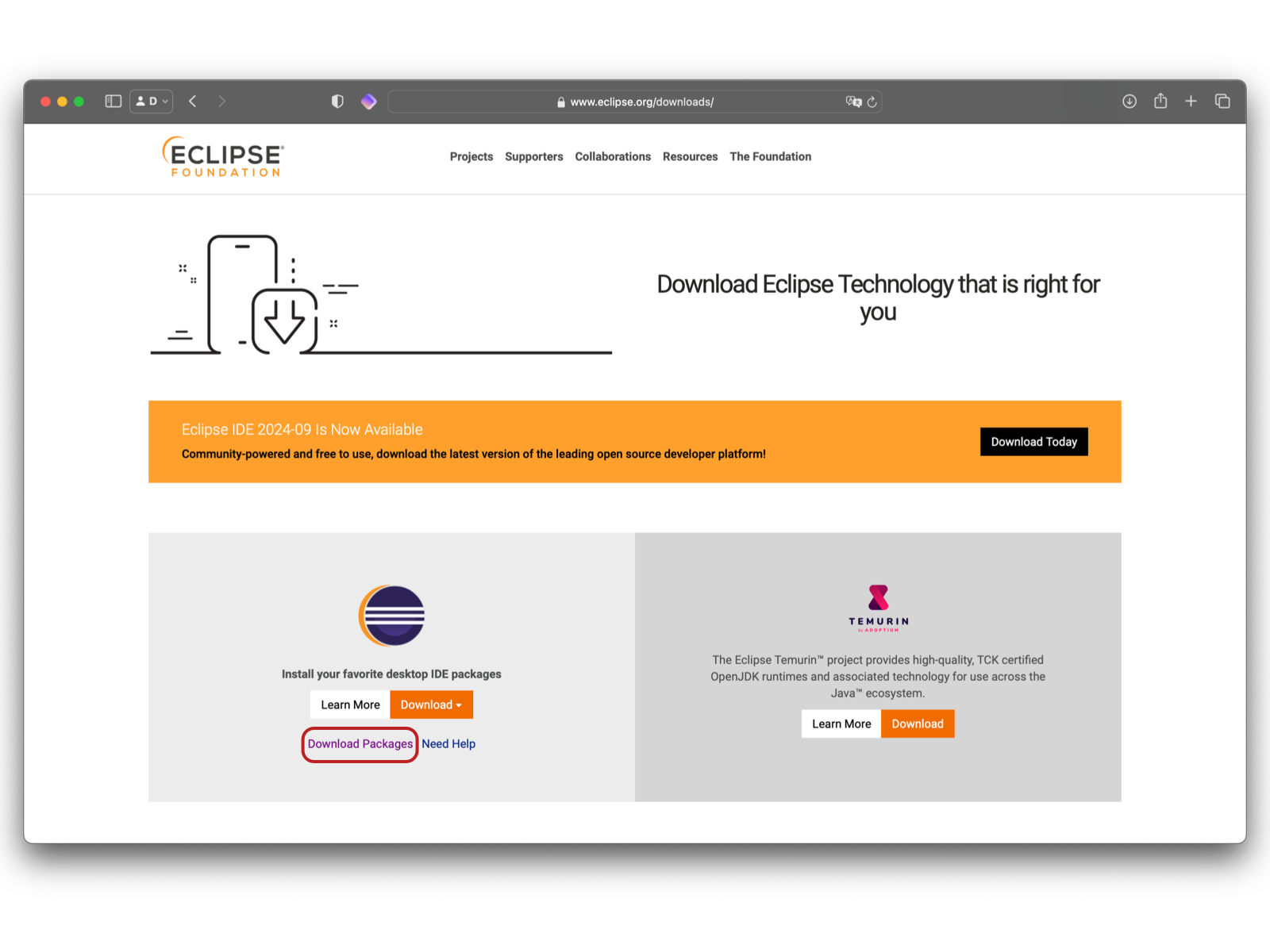
Click the Download Packages button
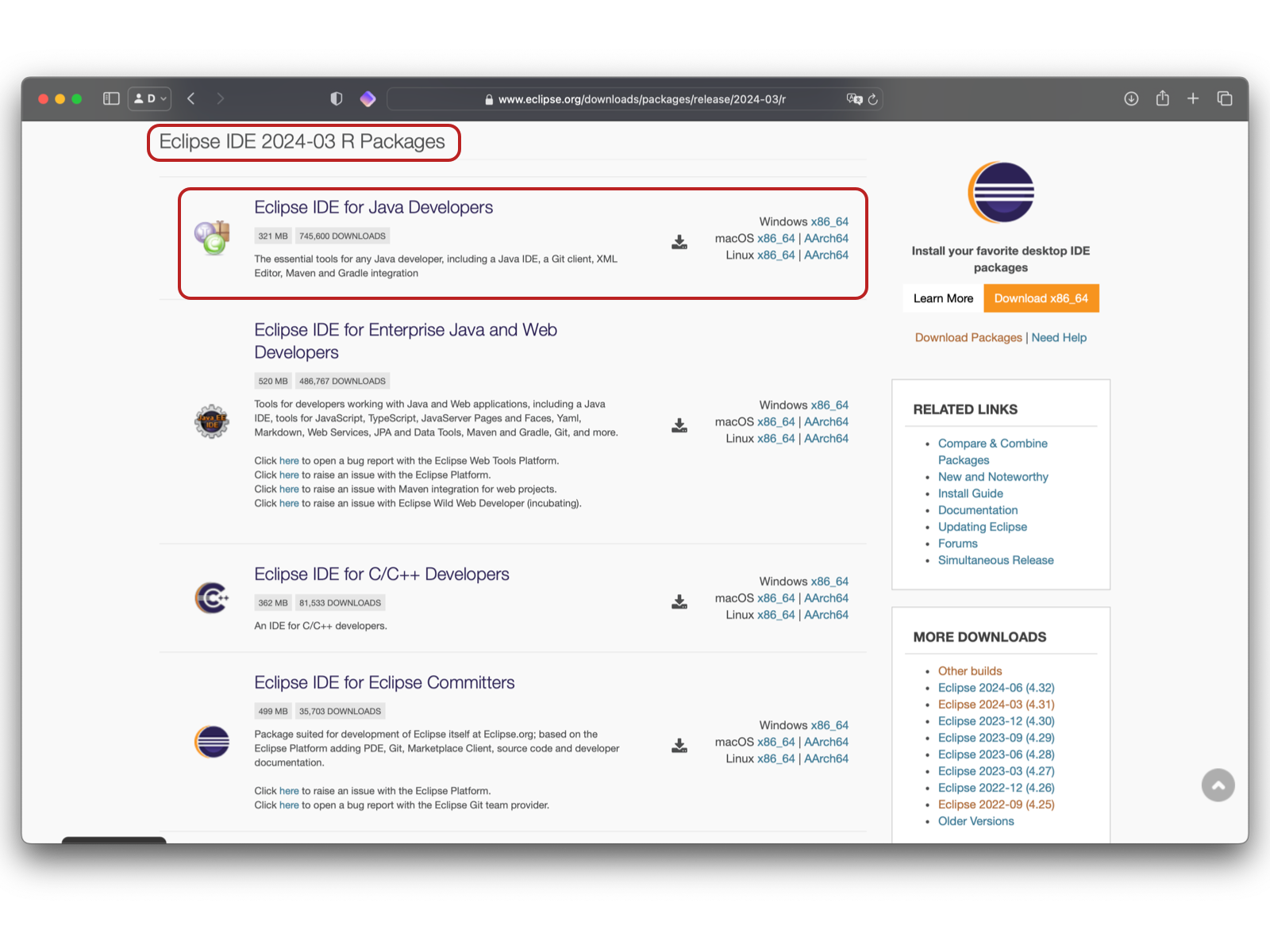
Using Eclipse 2026-06 for Java Developers is recommended with P3/COBOL Version 25.0.
Since Eclipse 2021-12 the Eclipse IDE for Java Developers has no built-in XML-Editor (although it is described), you can install the XML-Editor via the Eclipse Marketplace or install the Eclipse IDE for Enterprise Java and Web Developers.
Extracting and Installing Eclipse
Eclipse is unique in that regardless of the operating system, it is a self contained application inside of a folder with no installer.
Once you extract the 'eclipse' directory from the zip file (windows/linux) or installed from dmg file (macOS), you will be able to move it freely to wherever makes most sense on your setup.
A typical development folder hierarchy might look like this:
- eclipse
Setting up the workspace
When you run eclipse the first screen you see after the splash screen has completed will look like this:
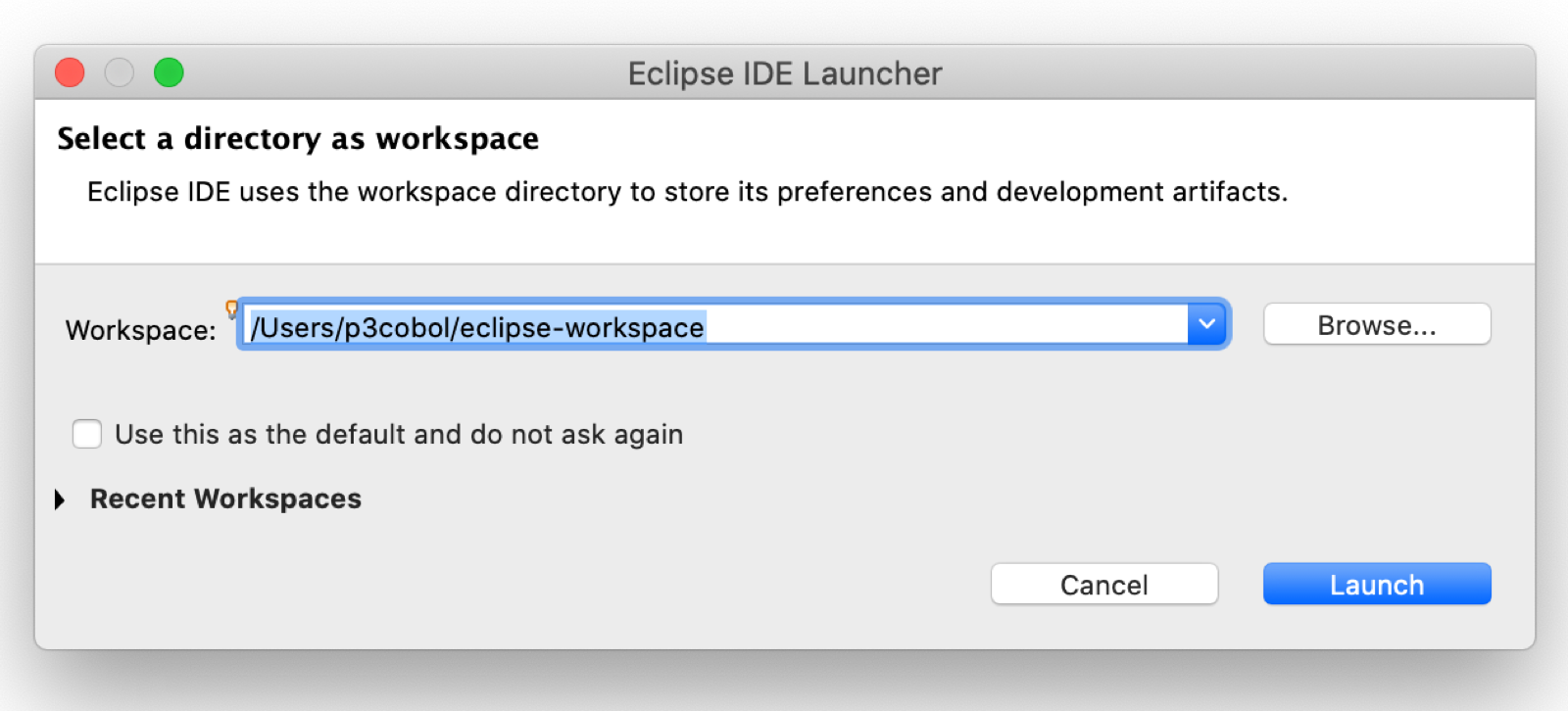
Here you will choose a directory where your workspace will be created or opened (if it already exists). Once you have selected the workspace directory and pressed the OK button, you will then be presented with default Eclipse workspace layout.
Close the welcome screen or click the Workbench button. After that the default editor layout should be presented.
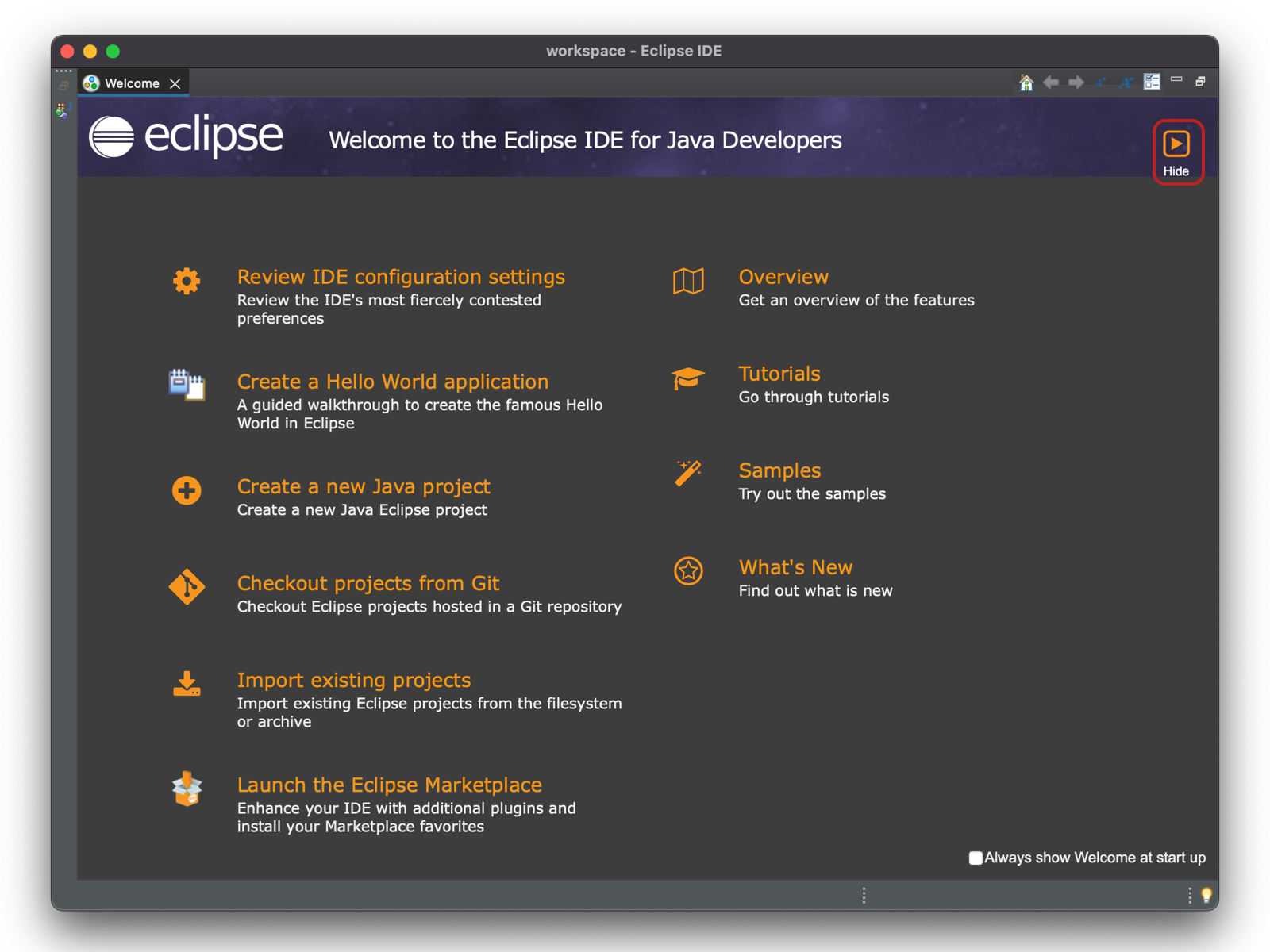
Installing the P3/COBOL IDE Plugin
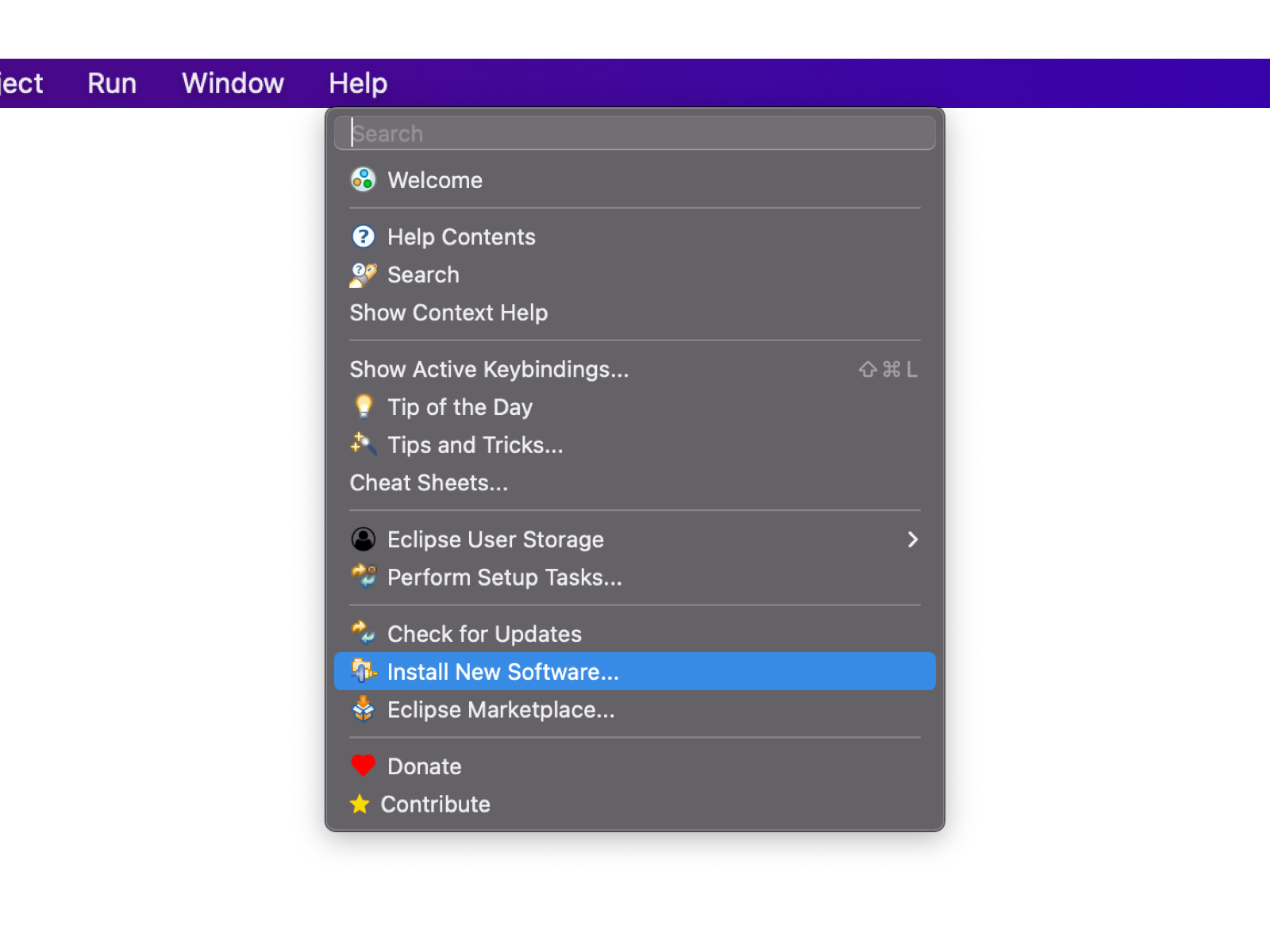
From here select the Help menu item and choose Install New Software...
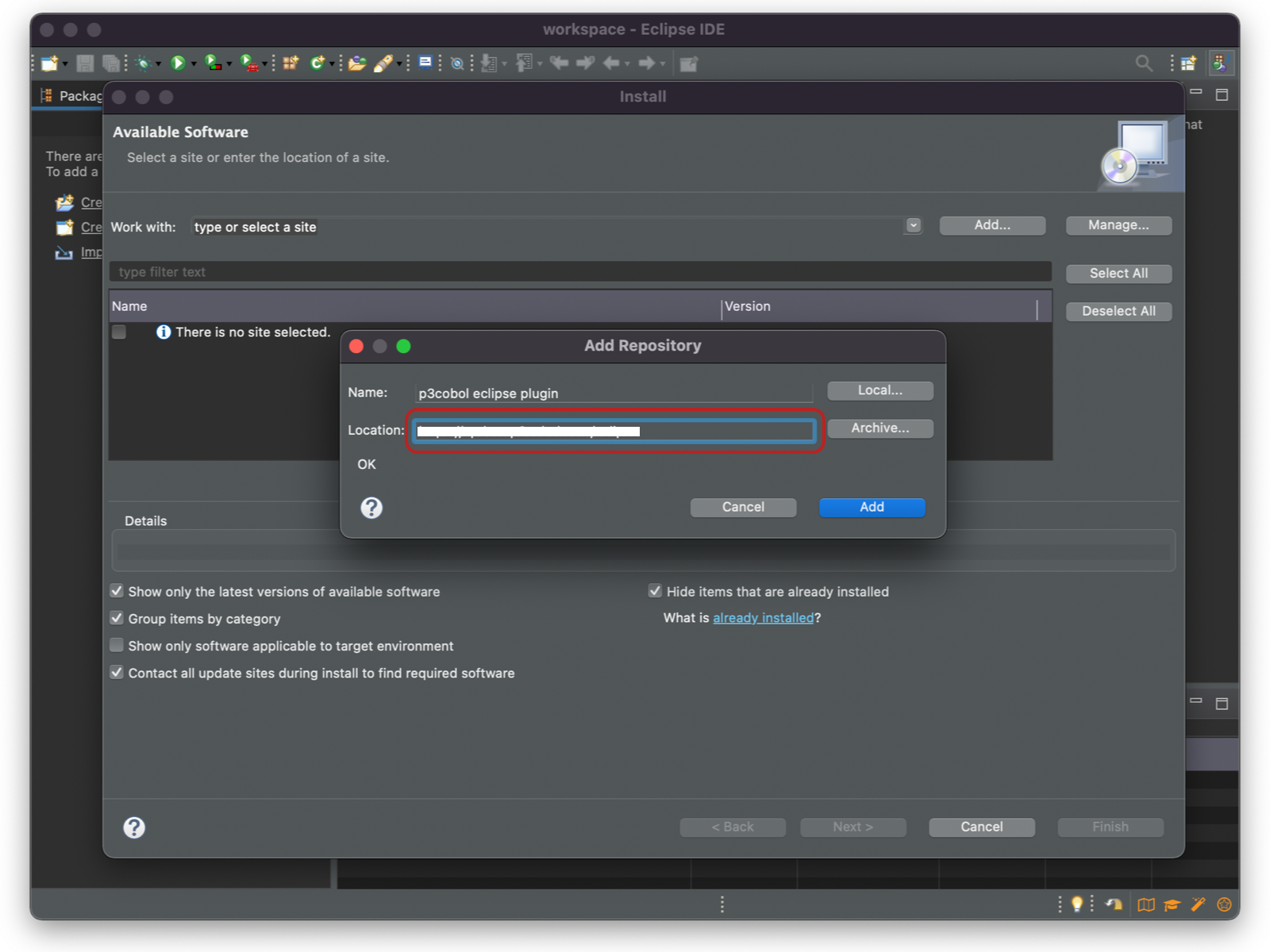
Click the Add button and, enter the update URL that was provided to you when you licensed the IDE, or a local archive of the P3/COBOL IDE plugins you have downloaded.
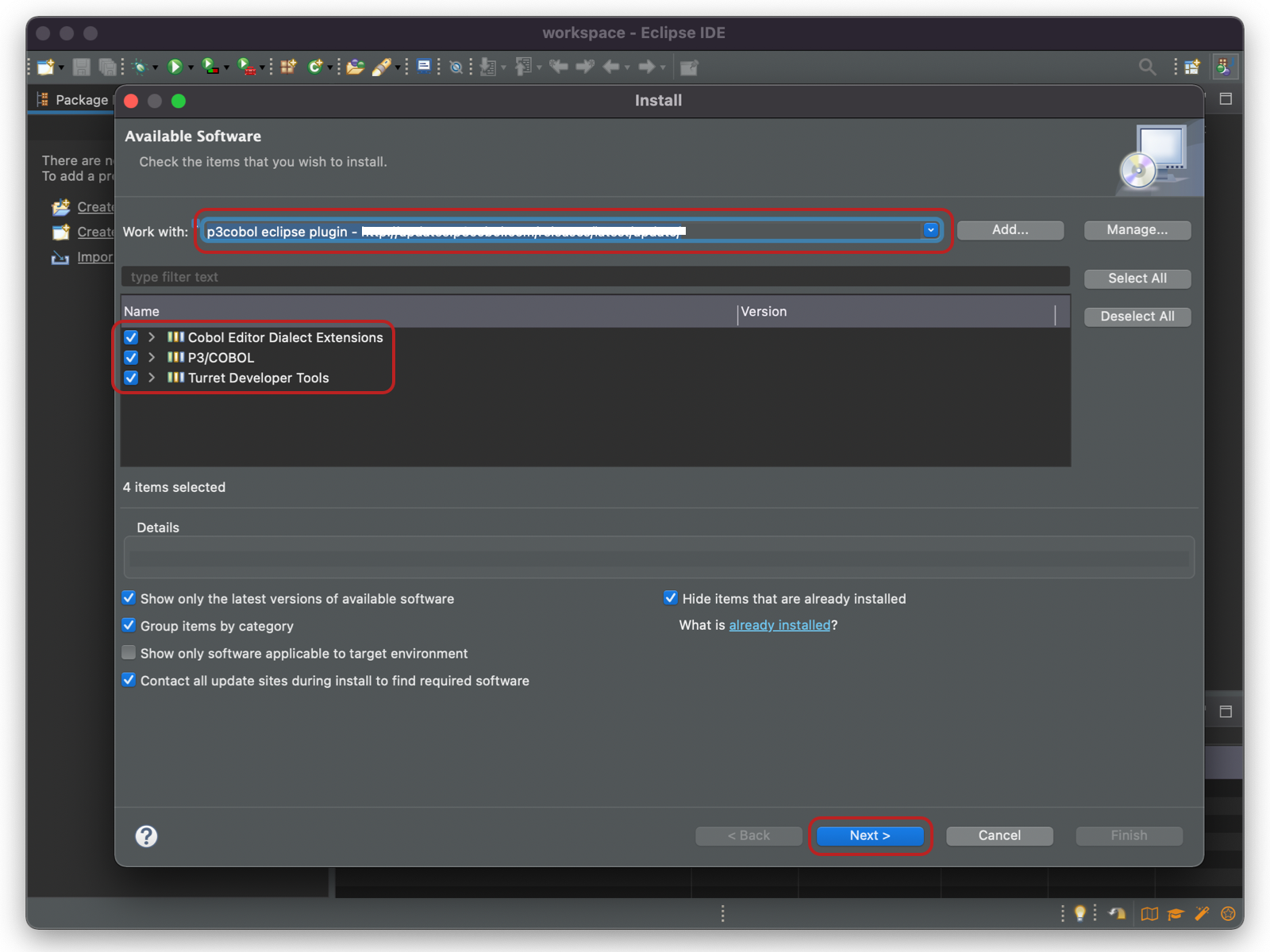
Select the Turret Developer Tools, COBOL Editor Dialect Extensions, and P3/COBOL and then proceed to the next wizard page.
This may take some time while it is checking dependencies. The progress bar should give some indication of the progress being made.
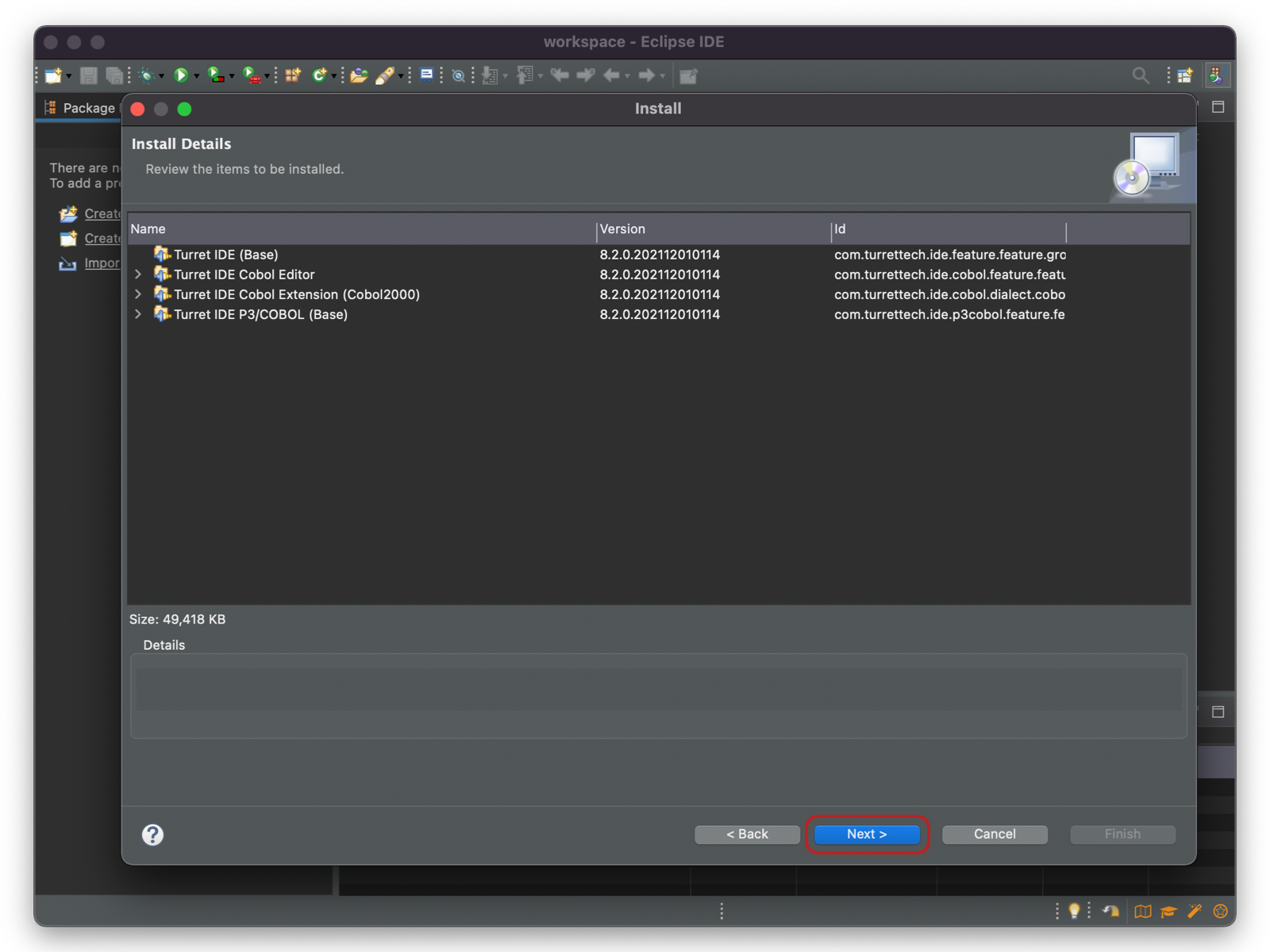
When the next window appears, simple press next to continue the installation process.
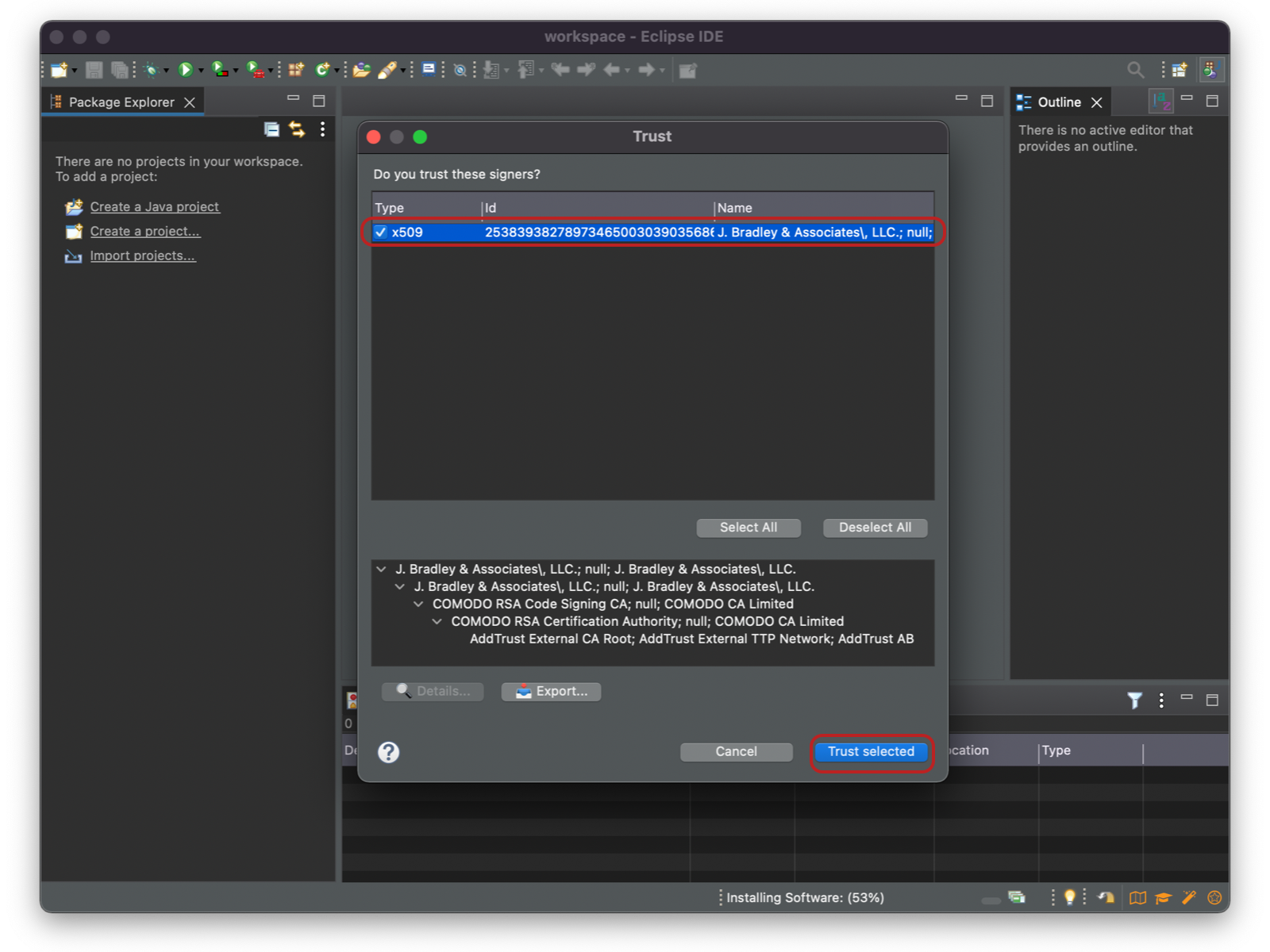
Select the signers, press Trust selected to continue the installation process.
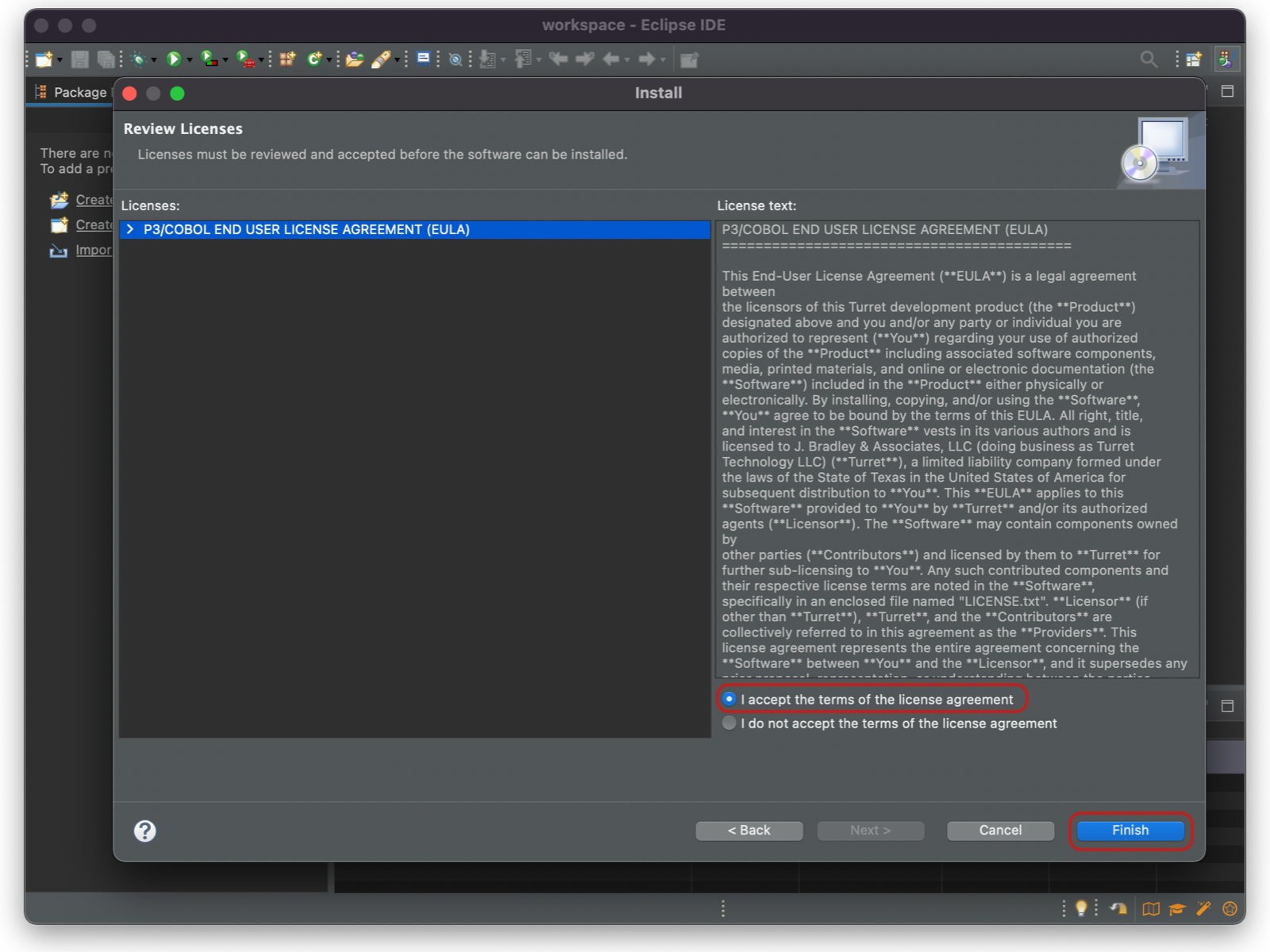
The license agreement should be read and if you agree with the terms, select I accept the terms of the license agreement and press the finish button.
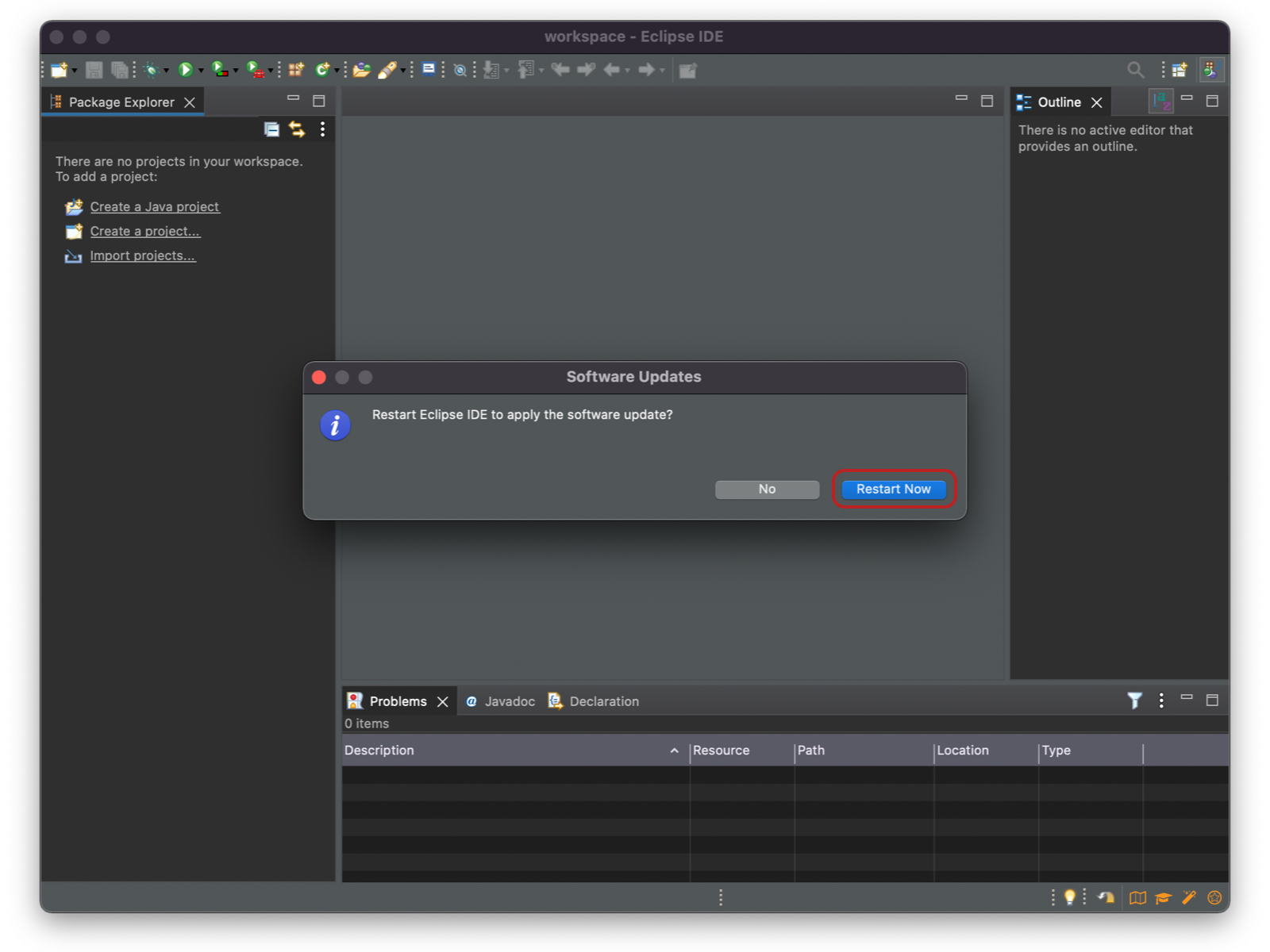
Once you've agreed to the license agreement the software will be downloaded and installed automatically. The last window to appear will state that the installation has completed. Simply agree to restart Eclipse to finish installing the P3/COBOL IDE.
After restarting, you can switch to the P3/COBOL Perspective.
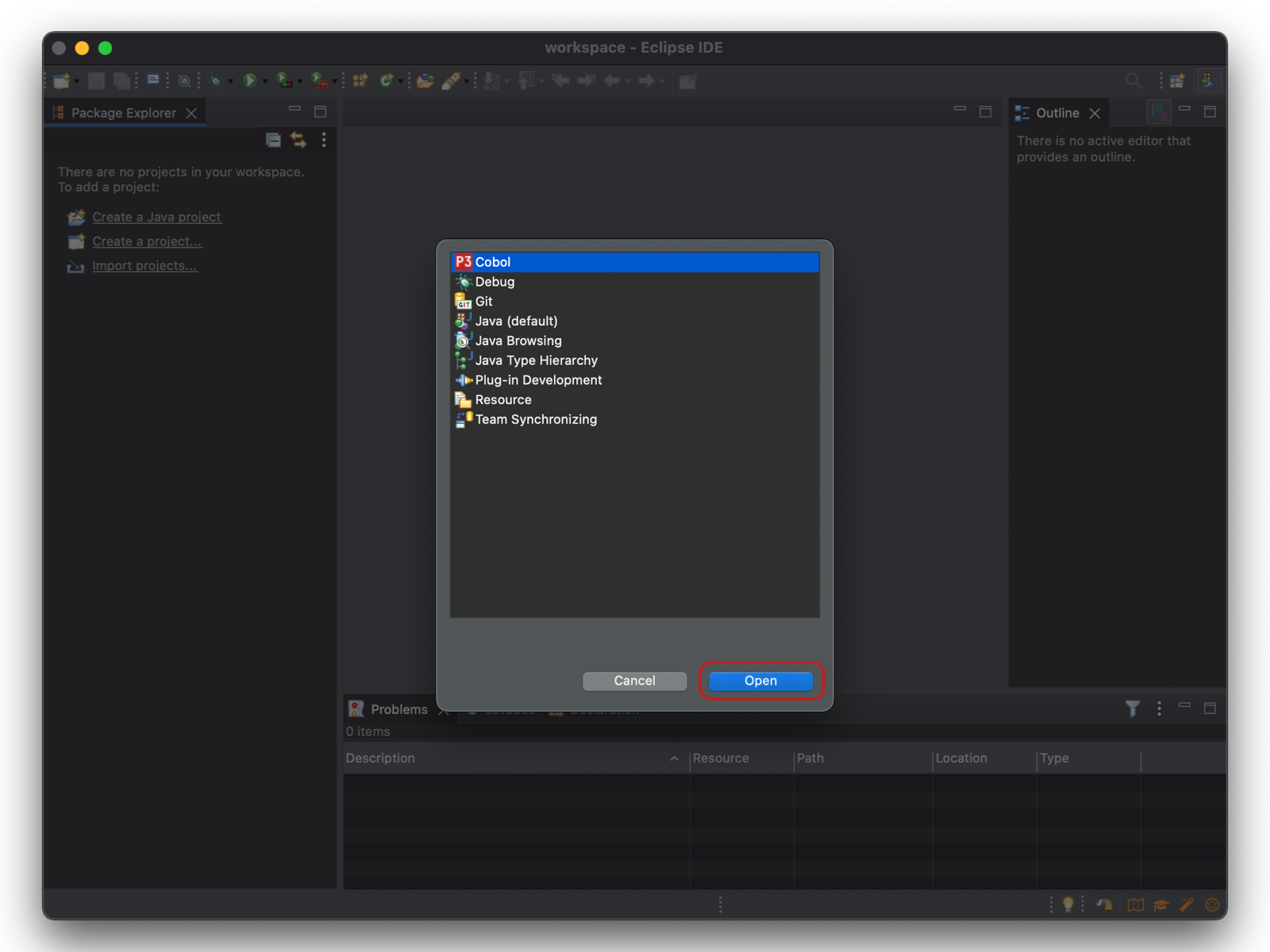
Install the P3/COBOL license
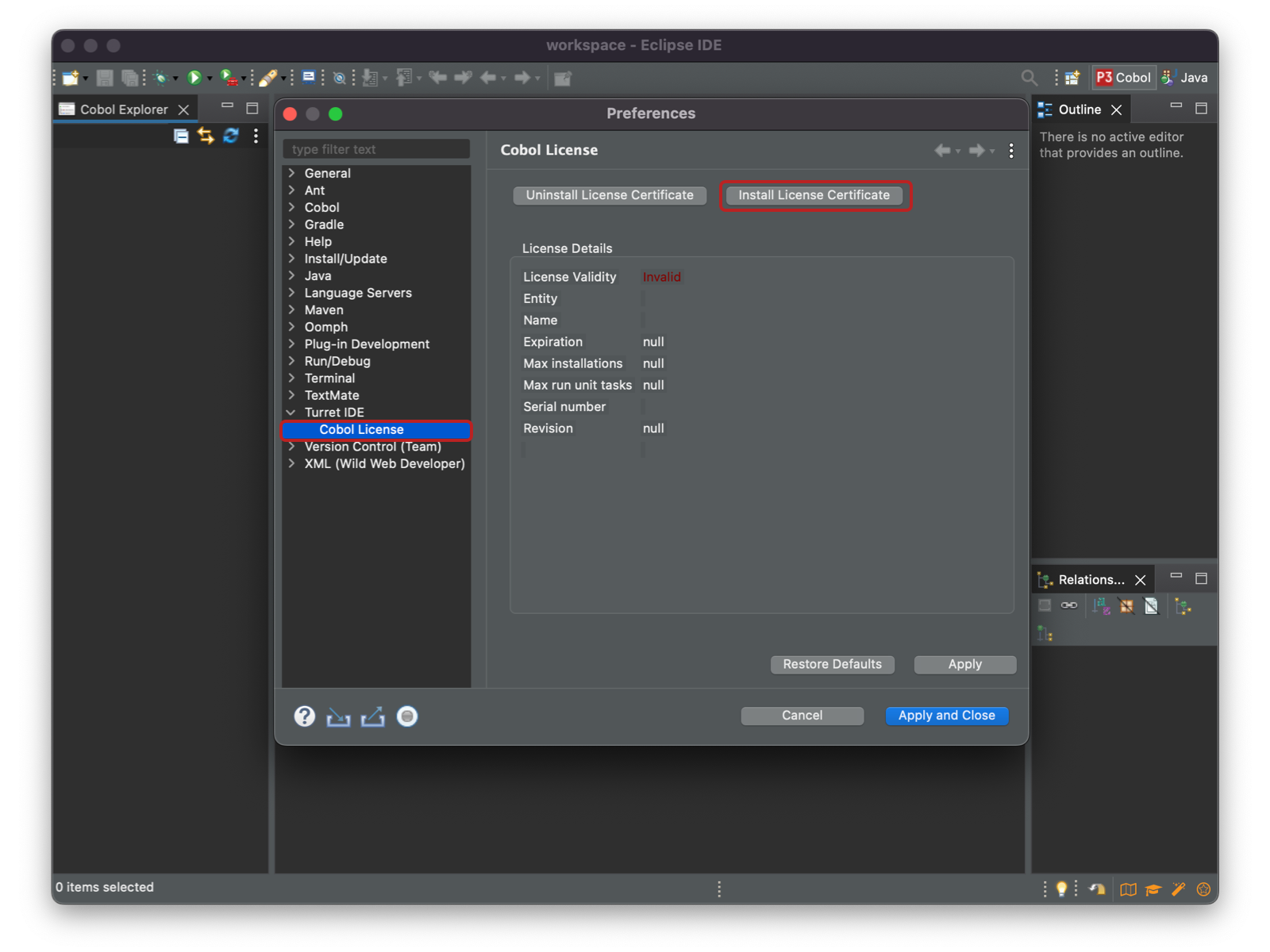
Open the Eclipse Preferences and navigate to Turret IDE -> Cobol License and click Install License Certificate.
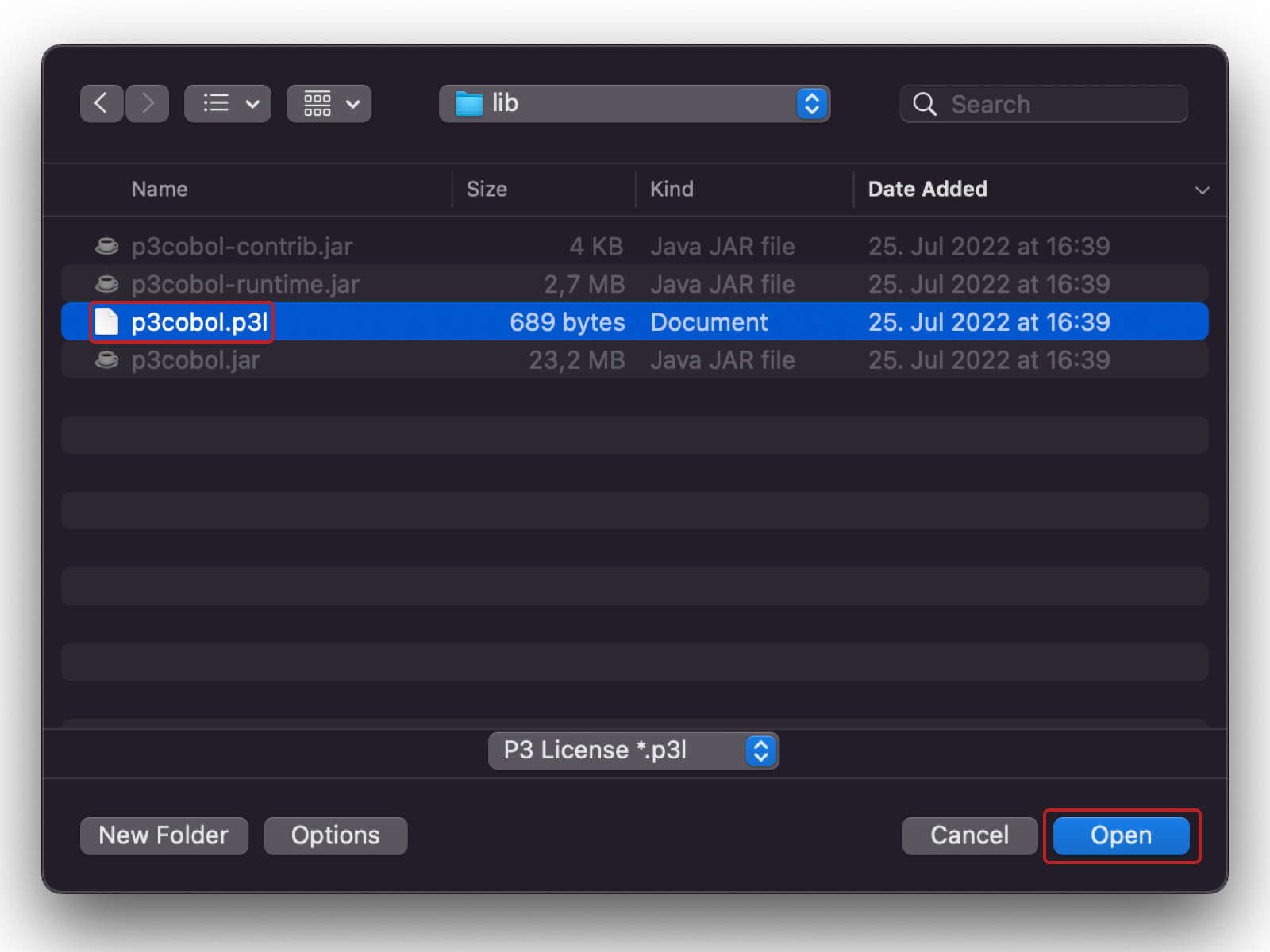
Select the license file (p3cobol.p3l) you want to activate P3/COBOL with and press open.
Be sure your License Validity is valid.
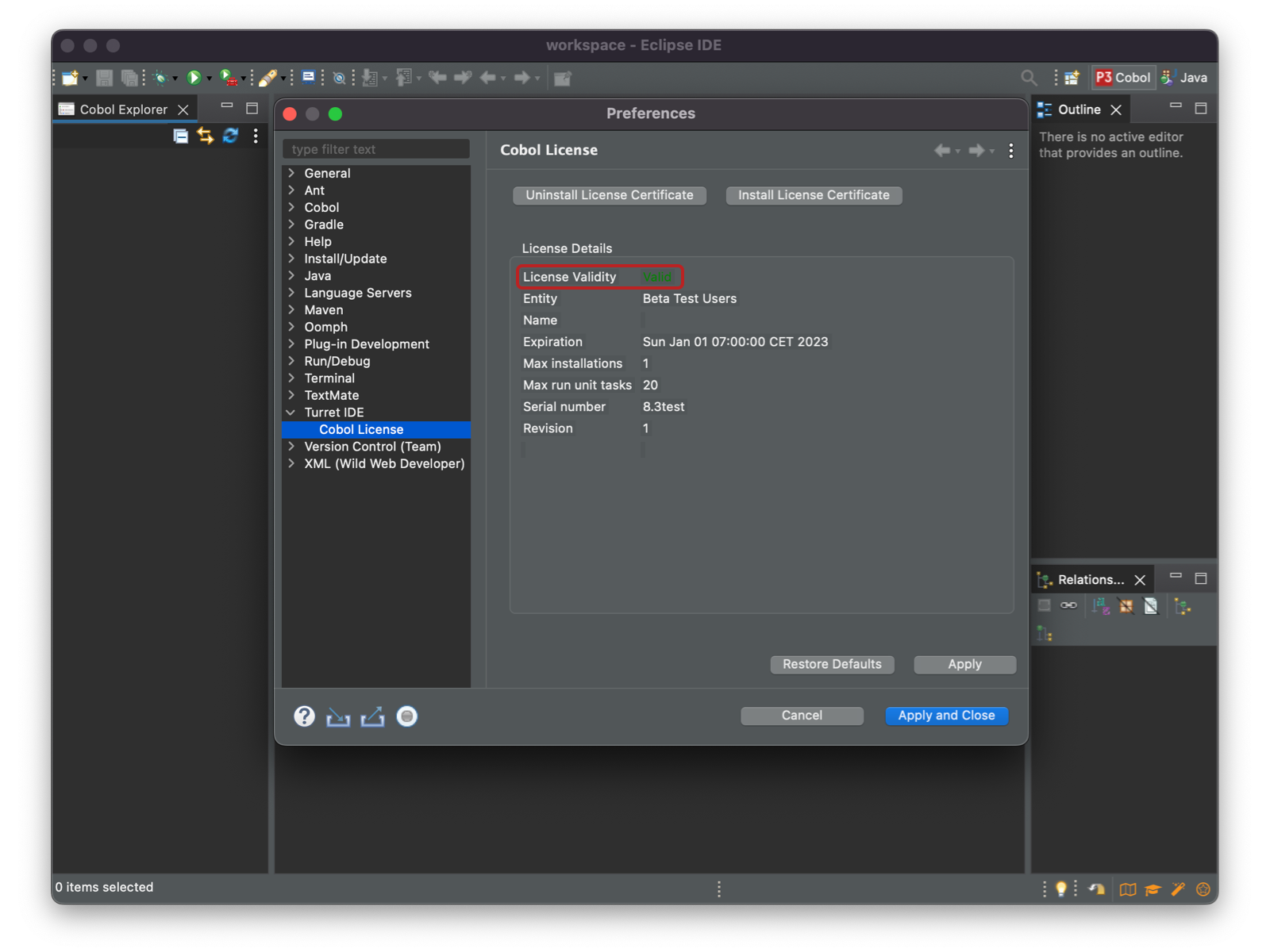
Now you are ready to code!
Happy coding! 🎉